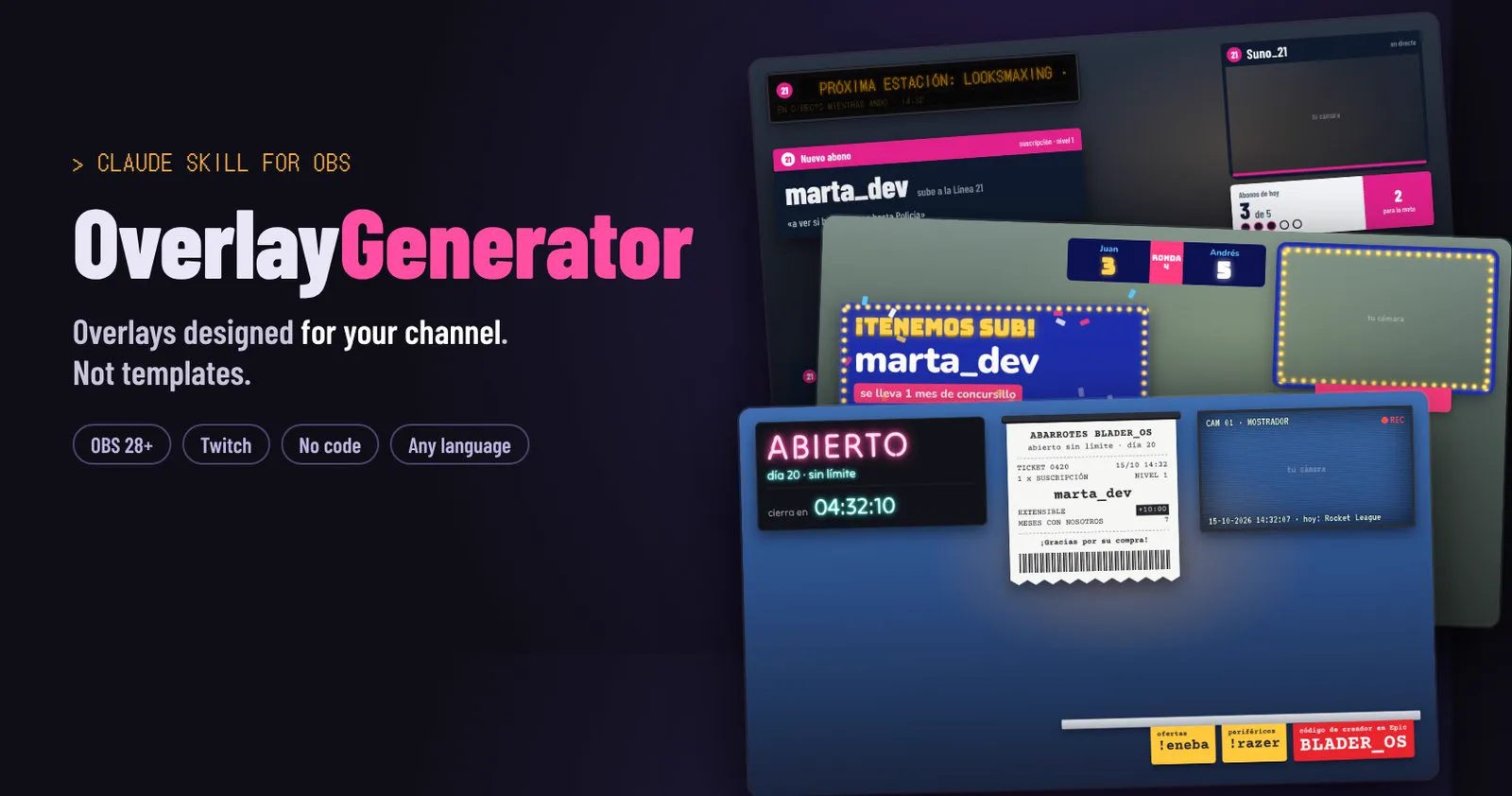
OBS overlays designed for your channel, not a template with your name on it
Paste your Twitch channel. Claude looks at what you play, how you talk to your chat and what makes your stream yours, then hands you a complete overlay pack ready for OBS. No code.
You: Make me an overlay pack. My channel is twitch.tv/your_channel
Claude: I looked at your last streams: mostly Elden Ring, no-hit runs, Spanish-speaking chat, you count deaths by hand in the title…
Here are two directions. Which one feels like you?
A complete pack, not loose pieces
You pick a direction, Claude builds the pack, and you get a zip with everything ready for OBS.
Scenes
Starting soon, Be right back, Ending, plus your main scenes: game, just chatting, coding…
Alerts
Sub, resub, gifted sub, sub bomb, raid and bits, written in your channel’s language and humour.
Chat & goals
On-screen chat, sub goal and camera frame that match the rest of the pack.
Pieces made for your format
Death counter, boss tracker, topic agenda, day counter… whatever your stream actually needs.
Control panel inside OBS
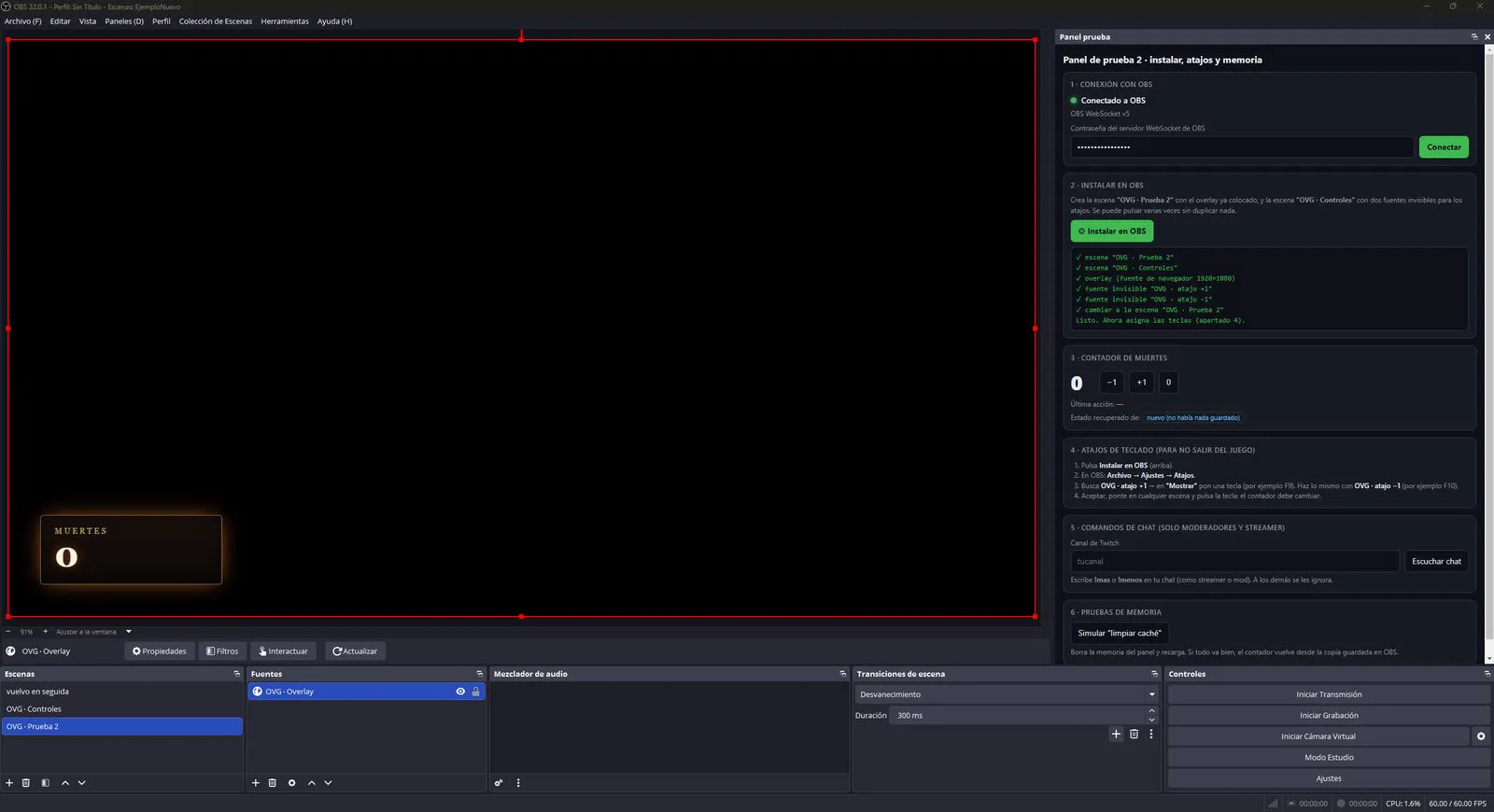
Buttons, hotkeys and chat commands for your mods to drive every piece live.
One-click install in OBS
Creates scenes and sources for you, already positioned. Running it again is safe: it repairs without duplicating.
One sub, five different channels
Every pack starts from the idea behind your channel, not from a style menu.
Try it without installing anything
This is a real pack made by the skill. Click the panel buttons and watch the overlay react, no OBS needed.
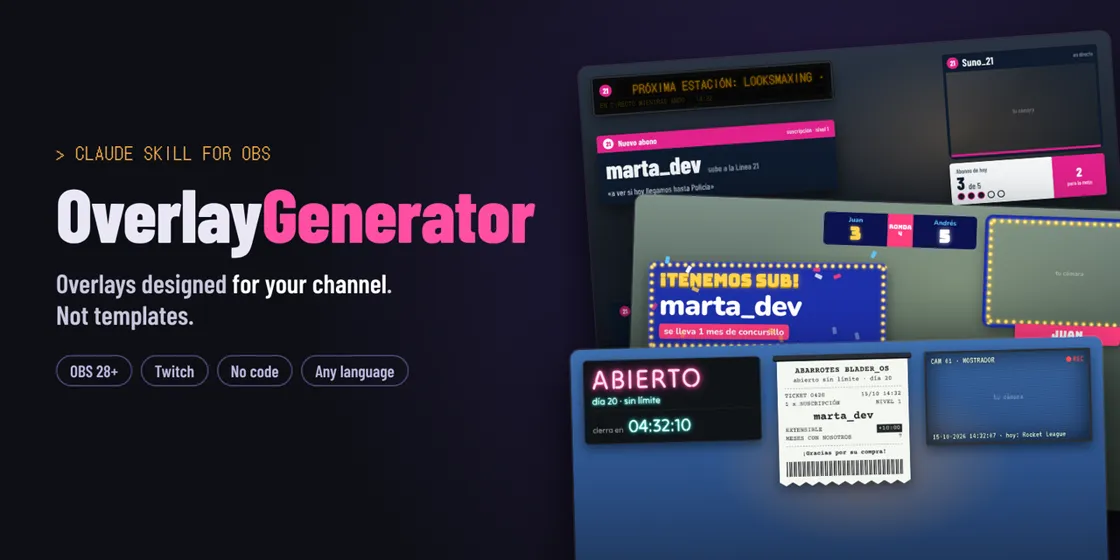
Made for every kind of stream
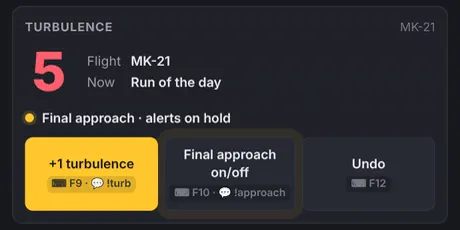
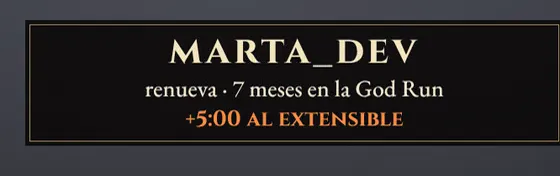 Soulslike & no-hit runsIn a no-hit run only one number matters.
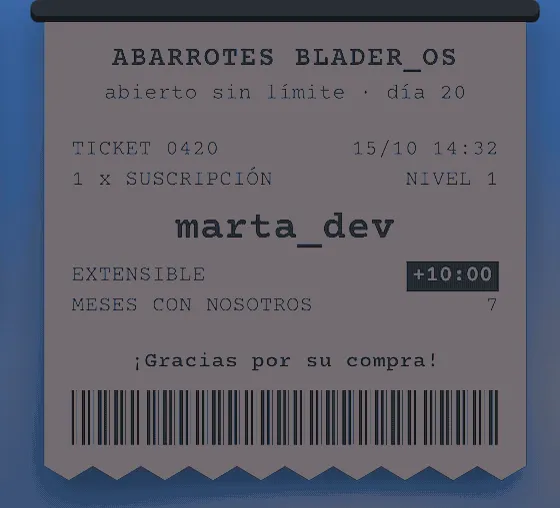 SubathonsA subathon lives on its timer.
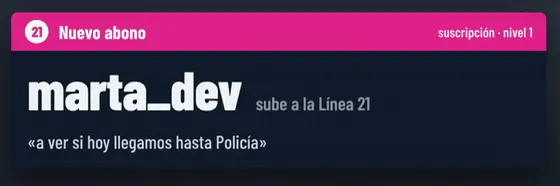 Just Chatting & talk showsWhen the stream is a conversation, the overlay is the set.
 Minecraft hardcoreA hardcore series is a story told in days.
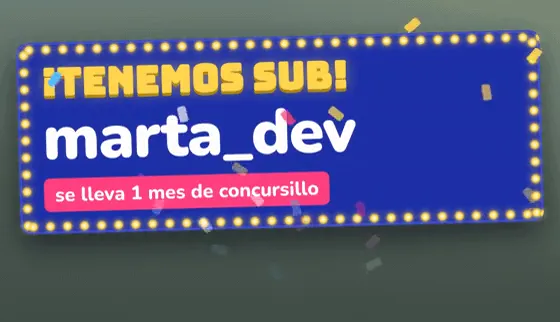 Game shows & quizzesIf you host your own shows, your overlay is the studio: scoreboard, lights and a big moment every time someone subs..
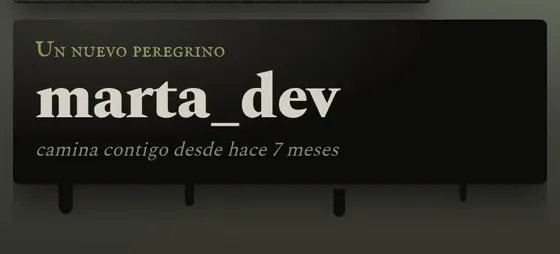 VTubersYour model and your lore are the channel.
Up and running in 3 minutes
Install the skill, ask Claude for your pack and connect it to OBS.
- Download the skill
Get
overlay-generator.zipfrom the latest release. Don’t unzip it. - Turn on code execution
In Claude: Settings → Capabilities and turn on Code execution and file creation.
- Upload the skill
Customize → Skills, click + → Create skill → Upload a skill, pick the zip and make sure it’s switched on.
- If it’s already in your account
Skills enabled in your Claude account sync to Claude Code automatically. Check with
/skills. - Or install it locally
Unzip it into your skills folder:
unzip overlay-generator.zip -d ~/.claude/skills/
- Install it straight from the repository
Inside Claude Code, run:
/plugin install overlay-generator --marketplace Ro0oman/OverlayGenerator-Claude-Skill
Ask Claude for your pack
Start a new chat and say something like:
preview.html to see the whole pack.About 5 minutes, and only once
The pack uses OBS’s own WebSocket. Nothing else to install: no Python, no server, no account.
- Unzip the pack in a permanent folder
For example
C:\Overlays\my-pack. - Turn on the WebSocket
Tools → WebSocket Server Settings, tick Enable, keep authentication on and copy the password with Show Connect Info.
- Add the panel as a dock
Docks → Custom Browser Docks…, give it a name and paste the path of
panel.htmlas URL, e.g.file:///C:/Overlays/my-pack/panel.html. - Connect and install
Paste the password into the panel, click Connect then ⚙ Install in OBS. Scenes and sources are created for you.
- Optional: hotkeys
Settings → Hotkeys, search for the
OVG ·entries and set a key on Show. Works with Stream Deck too. - Optional: chat commands
Type your channel in the panel and click Listen to chat. Your mods can use
!death,!next… - Go live!
Keep the panel open while you stream: it’s the brain of the pack. You can minimise it, but don’t close it.
🔄 Update your pack
Send Claude your zip (or just pack.json) and say what you want: “add a boss tracker”, “louder alerts”. Unzip the new one over the old one and, if there are new pieces, click Install in OBS again. Your counters are kept.
Frequently asked questions
The overlay is blank or doesn’t react
- Check that the panel says Connected to OBS.
- If you added a source by hand, untick “Local file” and paste the full
file:///…address. - Right-click the source → Refresh.
“Panel closed” appears on stream
The panel dock was closed. Open it again from Docks and the notice disappears within seconds.
A hotkey doesn’t work inside a game
Some games in exclusive fullscreen or with strict anti-cheat swallow key presses. Use “Borderless window”, the chat command or a Stream Deck.
Does it support follows, donations or channel points?
Not yet. The pack reads chat anonymously (subs, resubs, gifts, raids, bits). For the rest, the guide shows how to keep those alerts in StreamElements or Streamlabs, styled to match.
Does it work with YouTube or Kick?
Scenes, panel and pieces work anywhere OBS does. Alerts and chat are Twitch-only in v1; YouTube and Kick are on the roadmap.
What about my privacy?
No accounts, no servers, no tracking. Everything runs in your OBS, on your computer.
Your channel deserves more than a template
Download the skill and have your pack ready before your next stream.